Showing posts with label ergonomics. Show all posts

Jan 8, 2021

memoQ Courses, Resources & Consulting at Translation Tribulations Tech

The new online school offers a variety of resources for new and experienced users of desktop and server editions

For many years now, I have advocated for better professional education for users of translation process support software at every level. I have tested curriculum delivery platforms, better ways of making information more accessible to those who need it, and more. In a limited scope, this has been a successful effort.

My greatest hope in these efforts was to encourage professional associations, technology providers and universities to do better by their clientele. I would judge the success there as mixed, at best. The wind of change discussed, for many of them, could fill one's sails... for a voyage off the edge of their flat Earth. Their reluctance to provide even minimal indexes for navigating copious video content is simply baffling, as an example.

Even with the current pandemic, I have seen little progress, though that may be as much for reasons such as those which kept me largely silent last year. It's hard to think about doing things better when you have to ask honestly which of the people you care for will be lost because of the refusal of so many national governments to do so.

In any case, I've always been one to advocate more personal involvement. If a person says they're hungry, give them food and listen to their stories. Cash may not be the answer. The courses, consulting and resources offered through my license of the Teachable platform will cover much of issues and assistance for which I have been an advocate in the translation sector for two decades. I also hope to involve other language service educators to offer their unique and valuable approaches in this venue. This is not to compete with any existing associations or companies, but rather to continue to show them how we can all work together to help users develop the competence and confidence so often needed and not found.

This, like all of us, is a work in progress. Check out Translation Tribulations Tech (here, or by clicking the school graphic at the top) and see if anything there provides missing elements for your professional toolkit.

Some of the initial offerings include:
Additional courses, consulting and tools for
  • regular expressions as an aid for translation of patterned information like currency expressions, dates, legal citations, coded information, etc.
  • better source document segmentation in projects
  • memoQ server basics for collaborating groups and small companies
  • memoQ and other technology for legal translation
will be available soon.

This platform provides a long-needed mechanism for providing more detailed learning assistance than I have enjoyed with this blog and my YouTube channel, and future publication habits on my part will reflect that. I'm excited about many ideas for moving ahead in quick and quicker steps with memoQ and so many other resources that many of us depend on for professional relief and productivity.


Aug 28, 2019

The challenge of light resource updates with many projects in memoQ

"Templates" take two forms in memoQ: the configuration option for equipping new projects with relevant resources in an automated way to save time and avoid forgetting important references or other information, which was introduced several years ago, and the older sort of "template" - a configured, existing project for a particular client or subject area - where new documents are simply added and old ones archived or deleted as time goes by. I use both approaches and still tend to rely more on the latter practice, as many do.

One colleague who is a frequent source of inspiration for new workflow approaches often mentions that her projects and support resources number in the hundreds, so many ideas I have for managing my own more limited set these days are not practical for her work. But recently someone mentioned casually that it was going to be difficult to update segmentation rules in the 1500 or so projects that her team maintains to support in-house translation needs in their firm. Oh, my God. Yes, that would take some time following the usual approach of going to Project home > Settings and selecting a new resource in even 10% of that number of projects.

There is a better way. In fact, this way will work with the desktop editions typically used by individuals as well as with memoQ server installations of any size, and a "mass update" of project light resources can be performed in very little time - less than it usually takes me to finish a cup of coffee in the morning. My recent article on memoQ light resource defaults and how to change them essentially points the way, but more details, now tested with a memoQ server as well, are given here.

Light resources in a desktop edition are typically stored in the paths
C:\ProgramData\MemoQ\Resources\Defaults for default resources and
C:\ProgramData\MemoQ\Resources\Local for customized (user-created) resources, unless that path was changed (as many do if they deal with a lot of files with long names and need to shorten paths to avoid errors when the file and path names together approach the 256 character limit imposed by Microsoft Windows).

Server installations follow more or less the same logic:
C:\ProgramData\MemoQ Server\Resources\Defaults for default resources and
C:\ProgramData\MemoQ Server\Resources\Local for custom ones, unless changed as noted above.

Note that the ProgramData folder is a hidden folder by default in Windows, so you may need to change your folder settings to view it.


Light resources stored in both the Defaults and custom (Local) folders are saved without the MemoQResource header one sees in an exported light resource file. Compare the following two screenshots of the same resource in the external editing and maintenance file (with XML comments to help me keep track of what things mean) and the stored file after importing it into memoQ:

My master resource file for German segmentation, maintained with comments in Notepad++
Imported custom resource file for German segmentation. All comments are stripped by memoQ.

So, what should you do if you have 200 projects for your personal work with a memoQ desktop edition or 1500 projects on your memoQ server, and you have a new segmentation rules file, for example, which you want to apply to all of your projects? Simply
  1. Copy all the text beginning with the XML declaration

    all the way down to the end of the file.
  2. Find the default or local resource to update in the paths described above (or in your own custom path) and open the file in a text editor.
  3. Select all the text in the installed resource file, and paste the text of the new resource over it, replacing the content completely.
  4. Save and close the file.
The changes to your default or custom resource will be active immediately. No need to restart memoQ or close and re-open any projects.

In my case, with the German segmentation file given as an example, I would paste that new content into the resource files for generic German (ger), as well as German from Germany (ger-DE), Austria (ger-AT) and Switzerland (ger-CH). No need to mess with the awful integrated resource editors in memoQ, because I keep a master resource file with explanatory comments to help me maintain it better outside of memoQ, and the segmentation I want will be the same for all language variants.

This method does nothing to disturb the content of existing projects nor does it affect their stability in any way. This should work with any memoQ light resources. Thus, for example, an IT department could plan bulk updates even of local resources like keyboard shortcut or web search settings given the necessary access to user drives on a network.

The approach that many follow of deleting old resources and importing new ones with the same names won't work; this can play Hell with project settings, because memoQ notices that a resource used in projects has been removed, and it does not replace the old assignment with a new one, even if that new one has the same name. I played that game with many variations to see if I could trick memoQ into substituting the same-named resource in my project and had no success at all. Don't go there. Use the process I described above.

Aug 1, 2019

memoQ Ergonomics Webinar on August 14th

On Wednesday, August 14 at 16:00 Central European Time, I will be giving a talk on working ergonomics in memoQ, drawing on the outline of an online course to be released later this month. You can register now HERE. The webinar will be held in English and is available to all interested parties free of charge. The recording will be available later to participants with the course materials.

This discussion will highlight key concepts and approaches from the course outline shown below. memoQ version 9 will be used as the basis for discussion, but most of the talk's content is applicable to any version from recent years.

Working Ergonomics in memoQ 9.0: Technology Practice for Ease of Use

Getting Laid Out
- Standard memoQ Layouts
This can be improved on....
- More Fun with memoQ Working Layouts!


Colors, Visibility and Priority
- Color My Grid!
- Fonts in the Working Display
Wild & crazy? Or legible? You decide!
- Translation Results List Tuning
See the match results in the order you prefer!

- Setting the user interface language

- Showing hidden characters

Tuning Options for Typists

- Autocorrect
- Lookup & insertion
- Autopropagation and Its Implications
- Predictive Typing
- Keyboard Customizing!

The Great Dictators
- Hey memoQ

- Chrome Speech

- Dragon NaturallySpeaking

- Other Speech Tools and the 3-Stage Process

Other Views of Translation
- Combining and Filtering Files for Translation

- What's in a Translation Files List?

- Making Sense of memoQ QA Results


Jun 11, 2019

Ergonomic optimization for memoQ windows & more!

Click the graphic to see the mind-blowing details of all you can get on two silly little screens. Imagine two big ones!

How many functional windows do you see for working in the memoQ project of the screenshot here? Do you need more? It's possible. Are you familiar with all the functions shown in this two-screen view of my laptop and a repurposed television screen on my working holiday?

Of course one need not be restricted to just the many undockable, resizable and relocatable windows of memoQ; other, third-party like the SDL MultiTerm Widget (for searching SDL term bases in memoQ or other applications) or IntelliWebSearch, which offers many customized, configurable multi-tab web searches with the browser engine of your choice, or others can be added as needed.

"But wait!", you say. "You can't undock memoQ windows except for the preview, and it's impossible to get enough space to see all the information in the Translation Results pane or see the comparison of large matches well!" Well, here you can. The Translation Results hit list can take the whole height of your screen if you want it to. And you can even see more than one translation and editing grid for files if you need to.

Just because memoQ Support or some expert in the company says stuff like that is not possible doesn't make it so. For something like a decade now I have heard users ask for a lot of layout customization features to improve working ergonomics in memoQ. Heck, I've heard myself beg for that for ages. But typically, one is told how difficult and expensive such efforts are, how there are other priorities, yada yada yada. What, apparently, nobody realized was that while all these discussions were going on, someone actually implemented the requested features, deliberately or otherwise. In any case, somehow that secret never got out. Until I stumbled over it last week while trying to enjoy a few days at the beach.

"How do I get there?" you and David Byrne may ask. Join us for the Best Practices in Translation Technology course from 15 to 20 July (next month) in Lisbon and find out! Or wait until I get around to opening my upcoming online courses, Working Ergonomics in memoQ and New Beginnings with memoQ 9.0, coming soon. Or look in all those memoQ basics tutorials from memoQ Translation Technologies Ltd. on YouTube - something as basic as ergonomics for using the software must be in there somewhere. Or maybe not. Yet.

Or... explore and discover the tricks yourself. And while you're at it, you might find some of the other hidden surprises cleverly concealed in the world's greatest translation environment toolkit.

Nov 22, 2013

memoQuickie: keyboard shortcuts for migrants (updated)

(PM - Pro - 2013R2 - 2013 - 6.2 - 6.0 - 5.0)

You can adapt memoQ keyboard shortcuts to your personal preferences or to be ergonomically compatible with other translation environments tools you use frequently for better productivity and reduced risk of errors.


Although keyboard shortcuts can be managed in the Resource Console, it is more useful to do so under Tools > Options… > Keyboard shortcuts, because that is the only place where a given set of keyboard shortcuts can be selected for use. Marking the checkbox for a list in the dialog shown above will make it the active one.

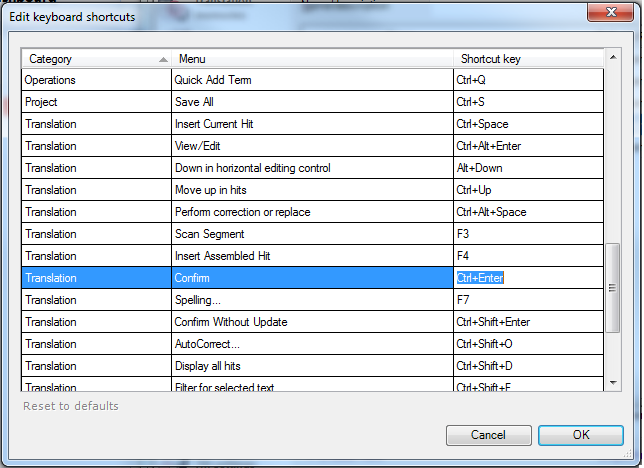
Look carefully at the keyboard shortcuts available in memoQ. Not all of these commands are found in menus (for example, the shortcut for quick search with selected text in a translation grid, Ctrl+Shift+F by default). To examine a set of keyboard shortcuts, select it and click Edit to show the list.


To change a keyboard shortcut, select the value in the Shortcut key column of the editing dialog and press the new key combination.

Feb 29, 2012

memoQuickie: keyboard shortcuts for migrants

Sometimes I am asked what a particular keyboard shortcut is in memoQ. I usually answer, "I have no idea!" Why? Because as a former Déjà Vu user, I adapted my memoQ shortcuts to match DVX. Those who frequently switch applications to SDL Trados Studio or another tool can do the same for better productivity and ergonomics.

Select Tools > Resource Console... > Keyboard shortcuts. Select the default resource, then click Edit in the menu at the bottom of the dialog. This will allow you to create a "cloned" copy of the defaults, which may be edited to use the shortcuts you desire. Custom resources can be saved and exported for use on other computers.


Select the shortcut to change and type the alternative key combination
The alternative path to access keyboard shortcut resources is Tools > Options... > Keyboard shortcuts. Here you can select the active set of shortcuts.