
Jun 14, 2010
Foolish tools
No matter what translation environment tool is used to work on a text like the one below, the experience can be an unpleasant one. MemoQ's cell scrolling feature makes this horrible case just barely tolerable. It's one of the biggest tag salads I've see in a while. In a "future scenario" I would like to see some option for condensing messes like this so that the real work of translating the text can be accomplished better. Usually I see garbage like this in INX (InDesign) files. This particularly charming case is a TTX made from a DOCX and imported into memoQ for reasons that are too hair-raising to explain.


Jun 13, 2010
Re-sending e-mail to a different address
When one has used a number of e-mail addresses in the past, it is often difficult to "retrain" clients to use special e-mail addresses to integrate with the workflows of an online translation process management system like OTM from lsp.net. A simple way to redirect request messages which arrive on the "wrong" e-mail account so that they can be used most easily as the basis for setting up a project in OTM is to use the "resend" feature of Microsoft Outlook.
When an inquiry is directed to the "wrong" e-mail account

Open the mail message and select the command "Resend This Message..." from the Actions menu of the mail message window.
A confirmation dialog appears
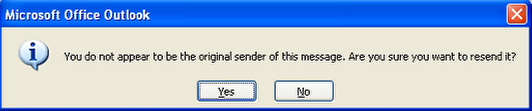
Click "Yes" to re-send the message. The message will arrive at the new recipient's inbox with the original sender indicated as the sender of the rerouted message.
Erase the original e-mail recipient's address and enter the new e-mail to which the message is to be re-routed

In this case the message will be re-sent to a project manager's address in OTM.
The rerouted message appears in the incoming e-mail for the new recipient

Here the re-sent message appears in the "orphaned mail" in OTM. From there it can be opened and used as the basis for setting up a new client project.
Related posts:
Jun 12, 2010
Screen Steps for tutorials
Recently a colleague recommended a new documentation tool to me, which he insisted would save time in creating small tutorials of software or documenting procedures. I was rather sceptical, because over the years I have seen a lot of screen capture programs, and I still prefer to use the PrintScreen button on the keyboard, MS Paint and Wordpad or MS Word for writing these documents. But when he told me that the tool included a straightforward authoring environment and multi-channel output to MS Word, PDF, HTML, blogs, etc. I was intrigued.
So I downloaded a copy of Screen Steps and tried it out. I'm still figuring out all the tricks (like how to size the graphics correctly), but my initial impression is very good. I've written a few small tutorials, including one in my klutzy German explaining how to use memoQ RTF table output to make source files such as InDesign INX available for translation or review by persons who do not use translation environment tools. I tested the blog output feature, which offers a number of options. My first attempt went utterly haywire and had to be deleted (choosing BBCode output was a mistake), but the second attempt with "neutral" HTML worked and can be seen more or less unmodified here. I'm going to leave it in all its ugliness for comparison as I learn better ways to structure the output to a blog. Still I don't think it's all that bad for an initial attempt. I liked the HTML output of the same content better.
I often want to create content for a variety of media, so I think this "poor man's single sourcing option" is a fine thing. The trial version is good for 30 days, and the "high-end" version of the tool costs only about USD 80. That's a lot of useful function at a bargain price.
So I downloaded a copy of Screen Steps and tried it out. I'm still figuring out all the tricks (like how to size the graphics correctly), but my initial impression is very good. I've written a few small tutorials, including one in my klutzy German explaining how to use memoQ RTF table output to make source files such as InDesign INX available for translation or review by persons who do not use translation environment tools. I tested the blog output feature, which offers a number of options. My first attempt went utterly haywire and had to be deleted (choosing BBCode output was a mistake), but the second attempt with "neutral" HTML worked and can be seen more or less unmodified here. I'm going to leave it in all its ugliness for comparison as I learn better ways to structure the output to a blog. Still I don't think it's all that bad for an initial attempt. I liked the HTML output of the same content better.
I often want to create content for a variety of media, so I think this "poor man's single sourcing option" is a fine thing. The trial version is good for 30 days, and the "high-end" version of the tool costs only about USD 80. That's a lot of useful function at a bargain price.
Subscribe to:
Posts (Atom)